How to Set Up IPTV on Fire Stick: Complete 2026 Step-by-Step Guide
Are you ready to cut the cord and transform your Amazon Fire Stick into a powerful IPTV streaming powerhouse? your ultimate resource for streaming guides, IPTV setup tutorials, and cutting-edge entertainment solutions.
In this comprehensive 2026 guide, we’ll walk you through everything you need to know about setting up IPTV on your Fire Stick – from initial preparation to advanced customization.
With over 82 million users worldwide and IPTV services revolutionizing how we consume content, mastering this setup unlocks unlimited entertainment possibilities. Whether you’re a streaming novice or a seasoned cord-cutter, this guide ensures you’ll be watching your favorite channels, movies, and live events in no time.
Why IPTV on Fire Stick is a Game-Changer in 2026
The combination of Amazon FireStick and IPTV (Internet Protocol Television) creates the perfect streaming ecosystem. Here’s why this setup dominates the 2026 entertainment landscape:
Key Advantages:
- Massive Content Library: Access thousands of live TV channels, on-demand movies, and exclusive content
- Cost-Effective: Save hundreds annually compared to traditional cable packages
- Global Access: Watch international channels from anywhere in the world
- Flexibility: No contracts, no hardware rentals, complete control over your viewing experience
- Portability: Take your entertainment system wherever you go
- Regular Updates: Fire Stick’s continuous improvements ensure optimal IPTV performance
What You’ll Need Before Starting
Essential Equipment Checklist:
- Amazon Fire Stick (2nd generation or newer recommended)
- Stable Internet Connection (Minimum 25 Mbps for HD, 50+ Mbps for 4K)
- IPTV Subscription from a reliable provider
- HDMI-Compatible TV
- Fire Stick Remote (or Fire TV app on smartphone)
- Optional: Ethernet adapter for wired connection
Recommended IPTV Apps for 2026:
- TiviMate (Premium version recommended)
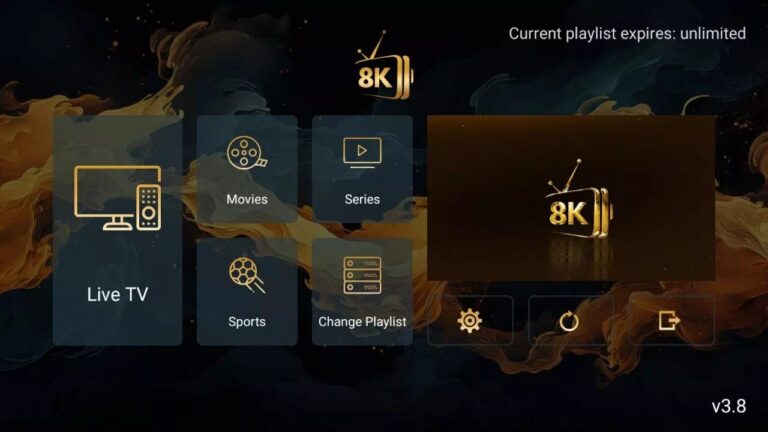
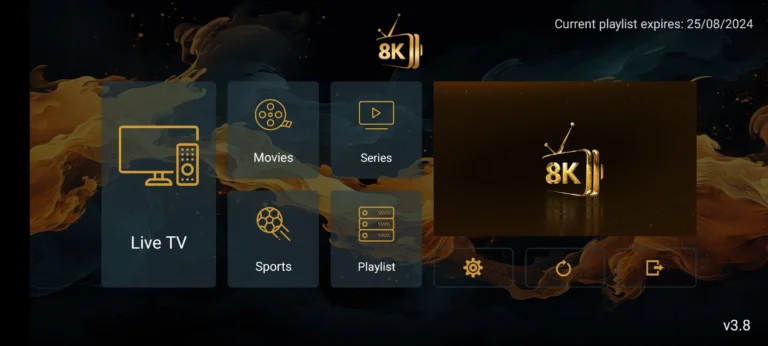
- 8k VIP Player
- IPTV Smarters Pro
- Perfect Player
- OTT Navigator
- XStream Player
Complete Step-by-Step Setup Guide
Phase 1: Initial Fire Stick Preparation
Step 1: Update Your Fire Stick
- Navigate to Settings > My Fire TV > About
- Select Check for Updates
- Install any available updates
- Restart your device when prompted
Step 2: Enable Developer Options
- Go to Settings > My Fire TV > Developer Options
- Turn ON the following:
- ADB Debugging
- Apps from Unknown Sources
Step 3: Install Downloader App
- From home screen, search for “Downloader”
- Select the orange Downloader icon
- Click Download or Get
- Open the app once installed
Phase 2: Installing Your IPTV Player
Method A: Installing TiviMate (8K Player VIP (8K IS PREMIUN SERVICE) Most Recommended)
- Open Downloader App
- Enter this URL:
https://iptvserviceinfo.com/tivimate.apk
(Replace with your preferred APK source) - Click Go to download
- Select Install when prompted
- Wait for installation to complete
- Click Open or return to home screen
Method B: Installing IPTV Smarters Pro
- Open Downloader app
- Enter:
https://iptvserviceinfo.com/smarters.apk - Follow same installation process
- Launch app when ready
Phase 3: Configuring Your IPTV Service
Step 1: Launch Your IPTV App
- Open TiviMate or your chosen player
- Grant necessary permissions when prompted
Step 2: Add Your IPTV Subscription
- Navigate to Settings > Add Playlist
- Choose your input method:
- Xtream Codes API (most common)
- M3U URL
- Local File
Step 3: Enter Your Credentials
- For Xtream Codes:textPortal URL: Provided by your IPTV service Username: Your subscription username Password: Your subscription password
- For M3U URL:textPaste the full M3U link from your provider
Step 4: Configure EPG (Electronic Program Guide)
- Go to EPG Sources
- Enter the EPG URL from your provider
- Click Apply and wait for EPG to load
Phase 4: Optimization & Customization
Optimizing Playback Settings:
- Buffer Size: Increase to 10-15 seconds for unstable connections
- Hardware Decoding: Enable for better performance
- Audio/Video Sync: Adjust if experiencing delay
- Preferred Resolution: Set based on your internet speed
Organizing Your Channels:
- Create Favorite Groups (Sports, News, Movies, etc.)
- Hide unused or duplicate channels
- Set up Parental Controls if needed
- Arrange channels by number or custom order
Appearance Customization:
- Change theme colors
- Adjust EPG transparency
- Modify channel list layout
- Customize remote button functions
Advanced Setup Tips for 2026
1. Using VPN with IPTV
Why You Need It:
- Bypass geographic restrictions
- Enhance privacy and security
- Prevent ISP throttling
- Access region-locked content
Recommended VPN Setup:
- Install a Fire Stick compatible VPN (ExpressVPN, NordVPN)
- Connect to optimal server location
- Configure VPN to launch at startup
- Test connection with IPTV service
2. External Storage Setup
Benefits:
- Store recordings and catch-up content
- Improve app performance
- Expand media library capacity
Setup Process:
- Connect USB drive via OTG adapter
- Format as internal storage
- Move IPTV app data to external storage
3. Multi-Room Setup
Create a Whole-Home System:
- Set up IPTV on multiple Fire Sticks
- Use same account across devices
- Sync favorites and settings
- Consider Fire TV Cube for main room
Troubleshooting Common Issues
Problem: Buffering/Freezing
Solutions:
- Check internet speed (minimum 25 Mbps)
- Change streaming server from provider dashboard
- Reduce video quality temporarily
- Use wired Ethernet connection
- Clear app cache: Settings > Applications > Manage Installed Applications
Problem: No Sound or Video
Solutions:
- Check HDMI connection
- Update Fire Stick software
- Change audio settings in IPTV app
- Try different video player (VLC, MX Player)
Problem: EPG Not Loading
Solutions:
- Verify EPG URL is correct
- Manually update EPG in settings
- Check timezone settings
- Contact provider for updated EPG source
Problem: App Crashes or Won’t Open
Solutions:
- Force stop and restart app
- Uninstall and reinstall
- Check for app updates
- Ensure sufficient storage space
Top 2026 IPTV Apps Comparison
| App Name | Best For | Price | Key Features |
|---|---|---|---|
| 8K PLAYER PREMIUM | Overall Experience | £18/Month | |
| TiviMate | Overall Experience | £15.99/month | Best EPG, recording, multi-screen |
| IPTV Smarters | Beginners | £15.99/month | User-friendly, parental controls |
| Perfect Player | Customization | £15.99/month | Skinnable, advanced settings |
| OTT Navigator | Advanced Users | £15.99/month | Multi-playlist, extensive features |
| XStream Player | Lightweight Use | £15.99/month | Simple interface, low resource use |
Maintenance & Best Practices
Weekly Maintenance:
- Clear app cache
- Update channel lists
- Check for app updates
- Restart Fire Stick
Monthly Maintenance:
- Review subscription status
- Test backup configurations
- Update VPN settings
- Backup favorites and settings
Performance Optimization:
- Disable unused Fire Stick apps
- Maintain 20% free storage
- Use 5GHz Wi-Fi when possible
- Position Fire Stick away from interference
FAQs: IPTV on Fire Stick 2026 Edition
Q: Is IPTV legal on Fire Stick?
A: Yes, using IPTV technology itself is legal. The legality depends on the content source. Always use licensed providers.
Q: What internet speed do I need?
A: Minimum 10 Mbps for SD, 25 Mbps for HD, 50+ Mbps for 4K streaming.
Q: Can I record IPTV on Fire Stick?
A: Yes, with apps like TiviMate Premium and external storage.
Q: How many devices can use one subscription?
A: Typically 1-5 devices depending on provider. Check your plan details.
Q: Do I need a VPN?
A: Recommended for privacy and accessing geo-restricted content, but not always mandatory.
Q: Why is my IPTV buffering?
A: Common causes: slow internet, server overload, Wi-Fi interference, or app settings.
Q: Can I use IPTV while traveling?
A: Yes, as long as you have internet access and your provider allows it.
Future Trends: What’s Next for IPTV & Fire Stick
2026 and Beyond:
- 8K Streaming Support: Fire Stick 4K Max already supports 8K upscaling
- AI-Powered Recommendations: Personalized content discovery
- Cloud DVR Integration: More cloud recording options
- Voice Control Advancements: Enhanced Alexa IPTV integration
- Gaming Integration: IPTV services adding casual gaming platforms
Conclusion
Setting up IPTV on your Fire Stick in 2026 is simpler than ever, offering unprecedented access to global entertainment. By following this comprehensive guide, you’ve transformed a simple streaming stick into a versatile entertainment hub capable of delivering thousands of live channels, on-demand content, and personalized viewing experiences.
Remember: The key to great IPTV experience lies in choosing a reliable provider, maintaining your system regularly, and staying updated with the latest apps and settings.
Ready to dive deeper into the world of streaming? Visit IPTVServiceInfo.com for:
- Latest IPTV app reviews
- Provider comparisons
- Advanced setup guides
- 2026 streaming trends
- Troubleshooting assistance
Pro Tips Before You Go:
- Start with a trial before committing to long-term subscriptions
- Join streaming communities for updates and support
- Bookmark IPTVServiceInfo.com for regular updates
- Share this guide with friends and family
Happy streaming in 2026 and beyond! 📺✨