Downloader Missing on Firestick? How to Fix Install Unknown Apps!
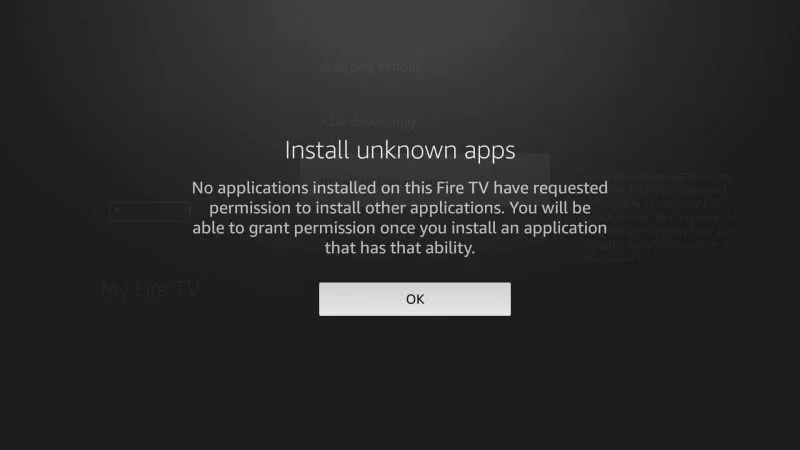
How to Fix Downloader Not Showing Up in Install Unknown Apps List on Your Firestick or Fire TV? You try installing an APK, downloader asks you to enable permission and settings screen does not give you any way to do it.
I’m having the same issue with my 3rd gen Fire TV Cube. ADB debugging is on, and the permissions list is empty. Some apps return when you turn it off but downloader is still missing.
I found two workarounds while testing, including the ADB command that lets Downloader request installs when it doesn’t show up in the list.
Quick Copy: Downloader Permission Command
If you have already connected ADBTools, ATVTools or another ADB client to your Fire TV and have opened the remote shell or shell-command section, copy and run this command:
the appops package set REQUEST_INSTALL_PACKAGES to permit com.esaba.downloader
Just copy the aforementioned command. run it in the shell connected to your Fire TV If your tool is already running commands in the Fire TV shell, you do not need to add adb shell.
Once it’s done running, go back to Downloader and give opening the APK another shot. Sometimes Downloader will not be in the list of settings still, so test the installation itself.
Not yet connected? Please proceed with the setup as outlined in Fix 2 below.
What Does This Fire TV Bug Look Like?
This problem creates a frustrating loop of permissions:
You download an APK with Downloader and try to install it.
Fire TV prompts you to allow Downloader to install unknown apps.
You go to the settings of permissions.
Not installed downloader or screen says no installed apps can be provided with permission.
Downloader is installed & switch for permission is not there. These steps solve that problem specifically. They are not a one size fits all for every download or APK installation error.
Fix 1: Turn ADB Debugging Off
If your Install Unknow ack some apps, including a file manager. I don’t list Downloader back to the list of my device.
Can You Install the APK Through a File Manager?
If a compatible file manager is shown you can allow installation permission. Then you might be able to open your downloaded APK with that file manager and start the installation.
This means the file manager needs to be able to access the downloaded file and launch the installer. The result I confirmed here is that switching off ADB restores some entries. The file-manager install path is a possible workaround, not a confirmed result from my testing.
Fix 2 is the method that got Downloader installing again on my Cube.
Fix 2: Grant Downloader Permission Using ADBTools or ATVTools
The method involves sending a command to your Fire TV from another device. It modifies the install-request setting of Downloader directly without the switch appearing in the settings menu.
1. Turn ADB Debugging Back On
Turn on ADB Debugging Go to Settings > My Fire TV > Developer Options and turn on ADB Debugging.
If you tried Fix 1, don’t forget to turn it back on. This connection requires ADB to be enabled.
2. Locate Your Fire TV’s IP Address
Open Settings > My Fire TV > About > Network and remember the IP address listed.
Make sure your phone or computer is on the same home network as your Fire TV.
3. Link Your ADB Client
1.Open your ADB client (e.g. ADBTools or ATVTools) and connect to the Fire TV using its IP address. If the tool asks for an ADB port, type 5555.
Approve the connection from your device when prompted on your television under debug authorization. Your ADB client might have different names and layout of buttons.
4. Open Remote shell and run command
Once connected, open the remote shell or shell-command part of the tool. Copy this command exactly and run it:
The appops have set com.esaba.downloader REQUEST_INSTALL_PACKAGES to allow.
Downloader is an Android app, by com.esaba.downloader. This command enables the REQUEST_INSTALL_PACKAGES operation of the app.
You may be returned to the command prompt without any success message. If an error appears, read the error before continuing. An error does not mean the permission was changed.
5. Retry the Downloader
Back to Downloader on your Fire TV.
Open the APK that you were trying to install.
Now, verify that the installation screen opens.
Select Install and verify that the installation finishes.
This is how I got Downloader to install again on my Cube. Even if permission is turned on, the list of settings may be incomplete.
You can turn ADB Debugging OFF again when you’re done if you don’t need it for other tools.
Using ADB from a Computer Instead?
If you’re on a computer terminal that has ADB installed, connect using the command below. Substitute FIRE_TV_IP with the address displayed on your Fire TV:
adb connect FIRE_TV_IP:5555
Give the connection on your television the green light, then execute:
adb shell appops set com.esaba.downloader REQUEST_INSTALL_PACKAGES allow
The distinction: the computer command begins with adb shell. The shorter command mentioned earlier in this guide is intended for tools that have already established a shell on the Fire TV.
Troubleshooting
ADBTools or ATVTools Will Not Connect
- Check that ADB Debugging is ON.
- Confirm you entered the Fire TV’s current IP address correctly.
- Make sure both devices are on the same home network.
- Look for the debugging authorization prompt on the television.
- Check whether guest-network isolation or a VPN’s local-network restrictions are preventing the devices from communicating.
The Command Ran, but Downloader Is Still Missing
The command isn’t reliant on Downloader reappearing in the menu. Return to Downloader and check an installation.
To check the app-operation setting from a connected Fire TV shell, use the command:
appops get com.esaba.downloader REQUEST_INSTALL_PACKAGES
Search for allow in the outcome. From a computer terminal, utilize:
adb shell appops get com.esaba.downloader REQUEST_INSTALL_PACKAGES
Just because a setting allows it doesn’t mean every APK can be installed. Should the installation fail again, be sure to capture the exact error message; this will help you tell a permission issue apart from other problems.
Will This Work on Every Firestick?
I have verified the behavior outlined here on my third-generation Fire TV Cube. Outcomes can differ based on the device and software version. Every Fire TV model is not confirmed as compatible by this guide.
Will the Fix Survive a Restart or Update?
I haven’t verified if it persists through every restart or software update. Should the same permission issue arise again, review the setting and redo the necessary steps if required.
Do I Need a VPN for This Fix?
No. You don’t need a VPN to change Downloader’s installation permission. Your ADB client must have a functioning local-network connection to the Fire TV.